Build your first web-ready asset
Goal: Build a four-part monitor, give it two colors, export a GLB and open it in the workshop viewer. Work in pairs: one person operates Blender while the other reads the next step. Swap after the model is built.
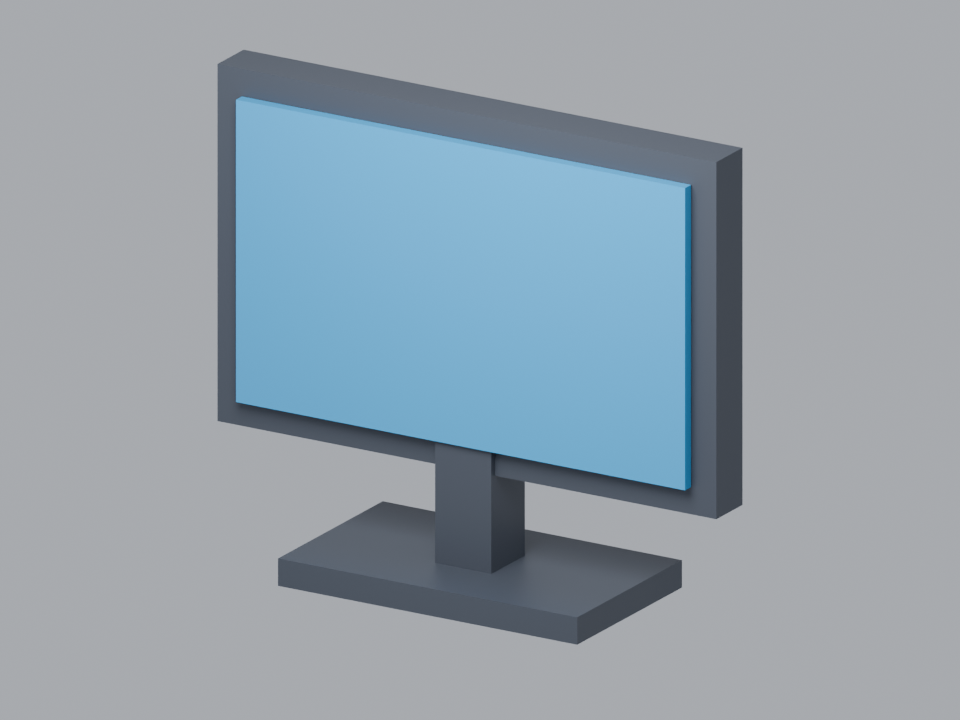
1. Build — 10 minutes
Start a new General file. Stay in Object Mode. Press A, then X, then confirm Delete to clear the default scene. This is a new practice file; do not clear an existing project.
For each row below:
- Move your pointer into the 3D viewport. Press F3, search Add Cube, and press Enter. In the Outliner, double-click the new object's name and rename it.
- Press N to open the sidebar. Under Item, enter Dimensions X/Y/Z, then Location X/Y/Z from the table. Type the numbers directly into the fields; do not drag to guess their size. Leave Rotation at zero.
- Add the next cube and repeat. Press N again if you want to hide the sidebar. Use the mouse wheel to zoom; the viewport navigation gizmo at the top right changes your view. The colored screen is on the front, facing negative Y.
| Object name |
Dimensions X |
Y |
Z |
Location X |
Y |
Z |
| Housing |
4 |
0.35 |
2.6 |
0 |
0 |
2.2 |
| Screen |
3.6 |
0.08 |
2.2 |
0 |
-0.22 |
2.2 |
| Stand |
0.45 |
0.45 |
1 |
0 |
0 |
0.6 |
| Base |
2.4 |
1.4 |
0.2 |
0 |
0 |
0.1 |
These are simple practice units. The completed monitor sits on Z = 0.
Select all four parts with A, then press Ctrl+A and choose Scale. Their dimensions stay the same; their scale values become 1. Press Ctrl+Shift+S and save your own file as my-monitor.blend.
Checkpoint: You can see four named parts, with the screen slightly in front of the housing. If you are behind, open checkpoint-model.blend and continue from the next section. starter.blend already contains the correctly sized housing if you only need a head start.
2. Color — 5 minutes
- Select Housing. Open Material Properties in the right-side Properties editor. Click New. Name it Body Graphite. In the Principled BSDF material, change Base Color to a dark gray.
- Select Stand, then choose Body Graphite from the material dropdown instead of creating another material. Repeat for Base.
- Select Screen. Create a second material called Screen Blue and set its Base Color to blue or another bright color. Use the Material Preview shading sphere at the top right of the viewport to see the colors.
Save again with Ctrl+S. You can personalize the two colors; image textures are not needed for this exercise.
Checkpoint: Three parts share one body material; the screen has a different material.
3. Export and preview — 6 minutes
- In Object Mode, press A to select the four parts. Choose File > Export > glTF 2.0. Set Format to glTF Binary (.glb) if necessary. Enable Selected Objects in the export options. Leave materials enabled and keep the default +Y Up setting. Export as
my-monitor.glb to a folder you can find.
- Open the workshop's Asset Viewer. Choose your exported
.glb file or drag it into the viewer. Drag to orbit and scroll to zoom. Check the front, side and base.
- Change one color or proportion in Blender, export again and open the new GLB. Save the
.blend too: it is your editable source, while the GLB is the copy for the viewer.
Done: Your own monitor appears in the browser with both colors and all four parts. If export is taking too long, use finished-monitor.glb to try the viewer, then return to your own file.
If something goes wrong
- A shortcut does nothing: Move the mouse over the 3D viewport first; Blender shortcuts act on the editor under the pointer.
- Dimensions are missing or a cube changes shape strangely: Return to Object Mode, select that object, then open N > Item. Do not build this exercise in Edit Mode.
- The screen is hidden: Check that Screen's Y location is -0.22, its Y dimension is 0.08, and look at the negative-Y/front side.
- The colors are gray: Switch from Solid shading to Material Preview. A black screen in the viewer can also mean the body material was assigned to it; give Screen its own material.
- Only one part exports: Select all four mesh objects before exporting and keep Selected Objects enabled.
- An old result appears in the viewer: Save the new GLB, then choose that file again in the viewer.
Finished early? Make a second monitor with different proportions or add a keyboard from one more cube. Keep your completed four-part version saved before experimenting.
Practice files